
Table of Contents
Your smartphone is likely the most powerful piece of technology you own, yet most people barely scratch the surface of its capabilities. We check social media, send messages, take photos, and maybe browse the web. But what if I told you that with the right apps and setup, your phone could become an intelligent assistant that dramatically enhances your productivity, creativity, and daily life?
I've spent the last year testing over fifty AI-powered mobile applications across both Android and iOS platforms. I've installed them on multiple devices, explored their free tiers, pushed their limitations, and evaluated their real-world usefulness beyond the marketing hype. The transformation has been remarkable. My phone now handles tasks that would have required a computer, saves me hours weekly, and enables capabilities I couldn't access just months ago.
This comprehensive guide will walk you through the best AI-powered mobile apps available today, organized by category, with specific installation instructions, privacy configuration recommendations, and practical tips for maximizing the free versions. Whether you're using an iPhone or an Android device, you'll discover how to transform your smartphone into a genuinely intelligent assistant that works for you around the clock.
Why Mobile AI Apps Matter More Than Ever
The mobile AI revolution represents something fundamentally different from the previous wave of smartphone apps. Traditional apps required your active input and decision-making at every step. AI-powered apps, by contrast, understand context, anticipate your needs, and proactively assist you. They're not just tools you use; they're assistants that work alongside you.
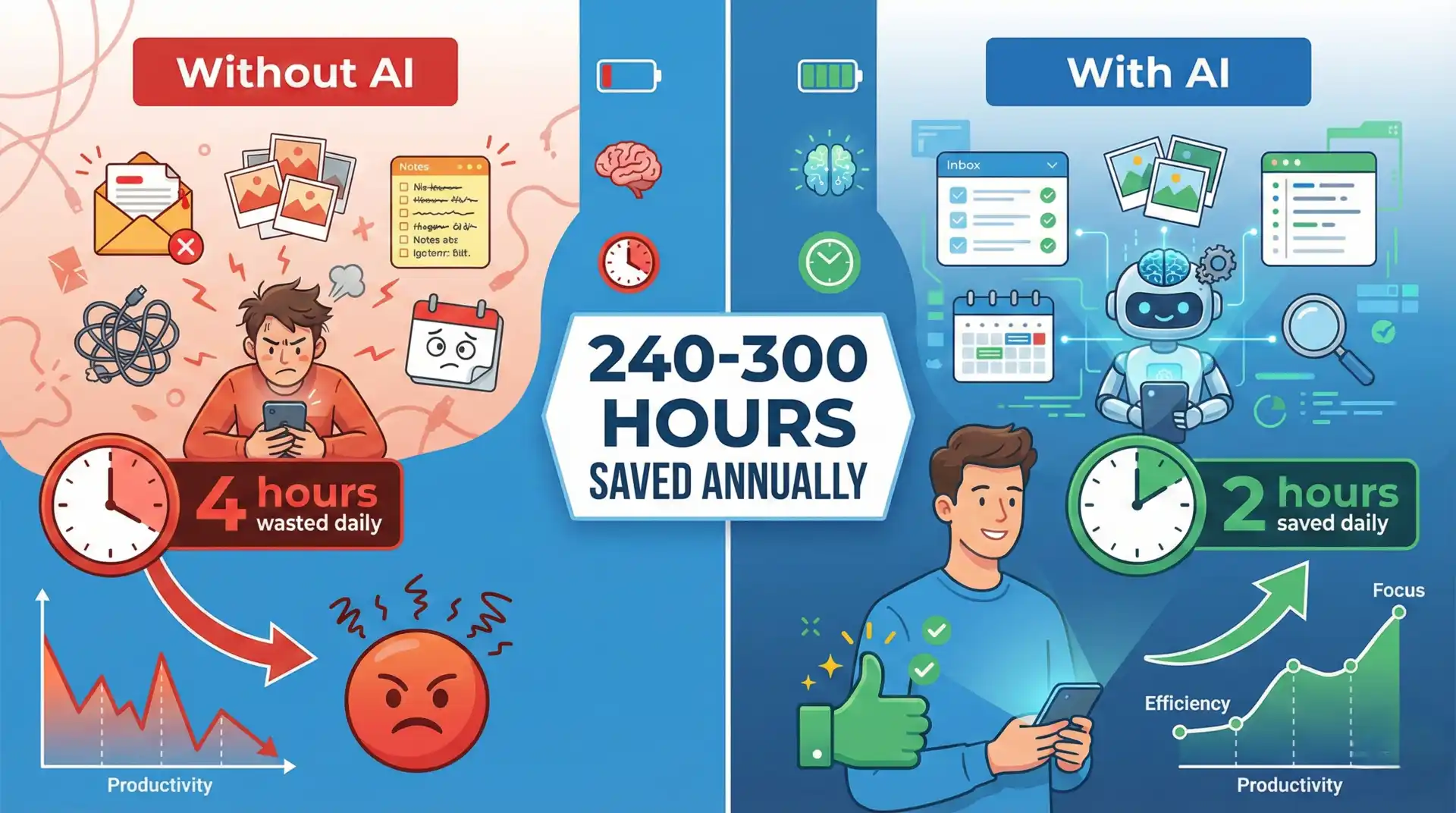
Consider the mathematics of mobile usage. The average person spends 3-4 hours daily on their smartphone. If even 20% of that time involves tasks that AI could enhance or accelerate, we're talking about 40-50 minutes daily, or 5-6 hours weekly. That's 240-300 hours annually—equivalent to six full work weeks—where AI assistance could make you faster, more creative, or more effective.
More importantly, your phone is always with you. Unlike desktop AI tools that require you to be at your computer, mobile AI apps provide assistance wherever you are: capturing ideas during your commute, editing photos at events, translating conversations while traveling, transcribing meetings in real-time, or learning new skills during downtime. This ubiquity makes mobile AI uniquely valuable.
The barrier to entry has also disappeared. Most powerful AI apps now offer genuinely useful free tiers, not just limited trial periods. You can build a complete AI assistant ecosystem on your phone without spending a penny, though understanding how to maximize these free versions requires some knowledge—which is exactly what this guide provides.
Category 1: Voice Assistants That Actually Understand You
Google Assistant (Enhanced with Gemini) iOS & Android
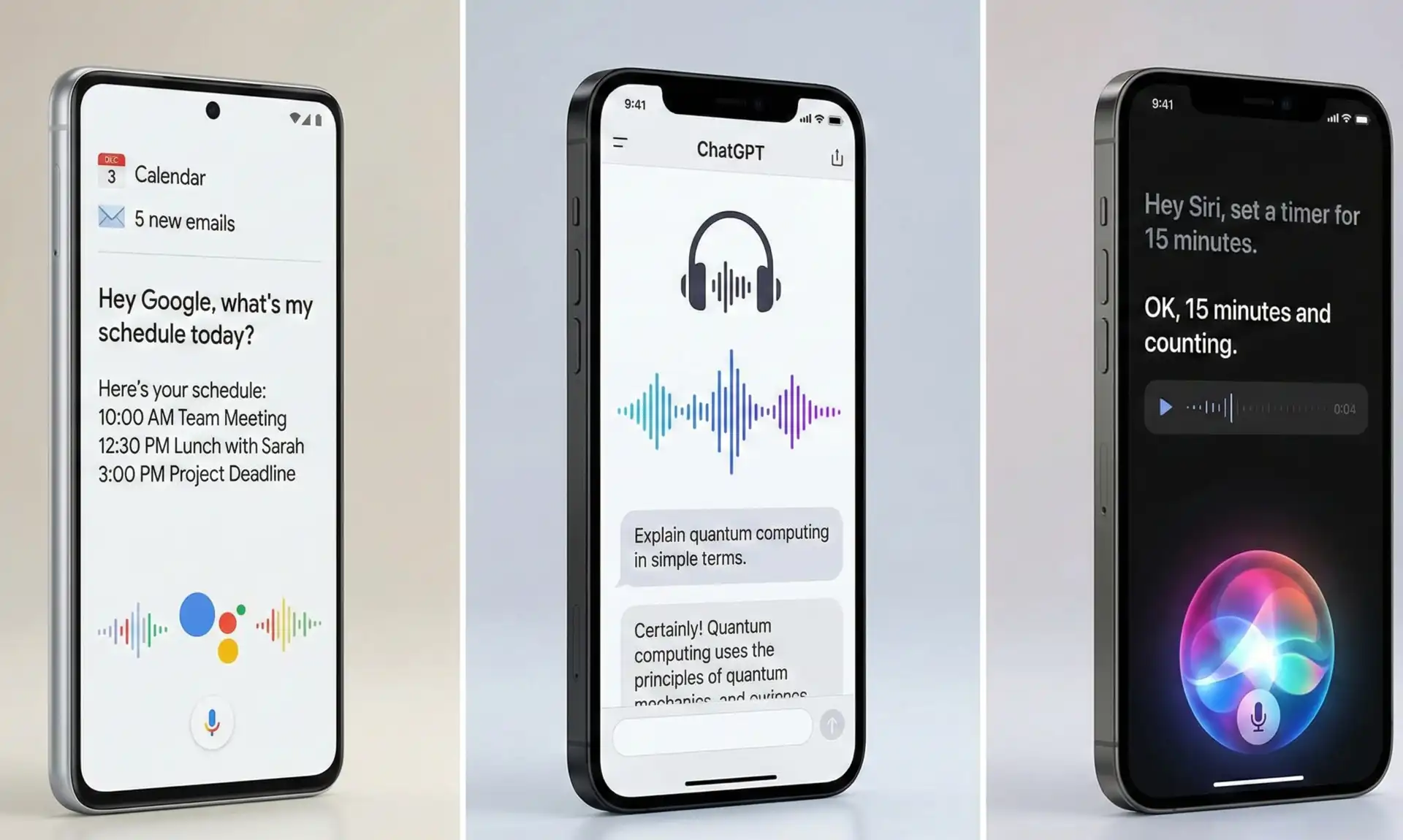
Why it stands out: Google Assistant has evolved dramatically with Gemini integration, transforming from a simple command-executor into a conversational AI that understands context and nuance. It's pre-installed on most Android devices and available as a free download on iOS, making it universally accessible.
Real-world capabilities: I use Google Assistant dozens of times daily for tasks that go far beyond simple commands. Instead of just setting timers or playing music, I now have natural conversations: "What's on my calendar tomorrow and should I reschedule anything to make room for a client meeting?" or "Summarize my emails from this morning and flag anything urgent." The AI understands these complex, multi-part requests and provides intelligent responses.
The integration with Google services makes it particularly powerful. It can read your emails aloud while you're driving, add items to your shopping list automatically when you mention them in conversation, set reminders based on location ("remind me to call the vendor when I get to the office"), and even control smart home devices with natural language.
- Android: Usually pre-installed. Open Settings > Google > Settings for Google Apps > Search, Assistant & Voice > Google Assistant. Enable "Hey Google" voice activation.
- iOS: Download from App Store. Grant microphone access. Add Siri Shortcut for quick activation ("Hey Siri, open Google Assistant").
- Privacy Configuration: Go to Assistant Settings > Your data in the Assistant > Web & App Activity. Review and delete past activity. Toggle off "Include voice and audio recordings" if privacy is a concern.
- Maximizing Free Tier: Connect your Google Calendar, Gmail, and Google Keep for maximum utility. Enable continued conversation mode for more natural interactions.
ChatGPT Mobile App iOS & Android
Why it's essential: OpenAI's mobile app brings the full power of ChatGPT to your pocket with an interface optimized for mobile use. The free tier includes GPT-4o mini, which handles most tasks excellently, plus voice conversation mode that feels remarkably natural.
Practical applications: I keep ChatGPT mobile app on my home screen because it's become my go-to tool for countless situations. Writing professional emails on-the-go, getting recipe suggestions based on ingredients I have, explaining complex topics I need to understand quickly, practicing language conversations, debugging code errors, drafting social media posts, and even getting advice on difficult interpersonal situations.
The voice mode deserves special mention. Unlike traditional voice assistants that require specific command structures, ChatGPT's voice conversation feels genuinely natural. You can interrupt it, correct yourself mid-sentence, or have flowing back-and-forth discussions. I've used it while driving to brainstorm content ideas, work through problem-solving processes, and even practice presentation delivery.
- Installation: Download "ChatGPT" from App Store (iOS) or Google Play (Android). Create free OpenAI account or sign in with Google/Apple ID.
- Voice Setup: Tap headphone icon in bottom-right. Grant microphone permissions. Choose voice preference. Enable "Hands-free" mode for true assistant experience.
- Privacy Settings: Profile > Settings > Data Controls > Toggle off "Improve model for everyone" if you want conversations private. Enable "Chat History & Training" only if comfortable with data usage.
- Free Tier Tips: Save important conversations by starring them. Use custom instructions (Profile > Settings > Custom Instructions) to set context once rather than repeating it each conversation. Daily message limits refresh at midnight EST.
Category 2: AI Photo Editing Tools That Rival Desktop Software
Remini – AI Photo Enhancer iOS & Android
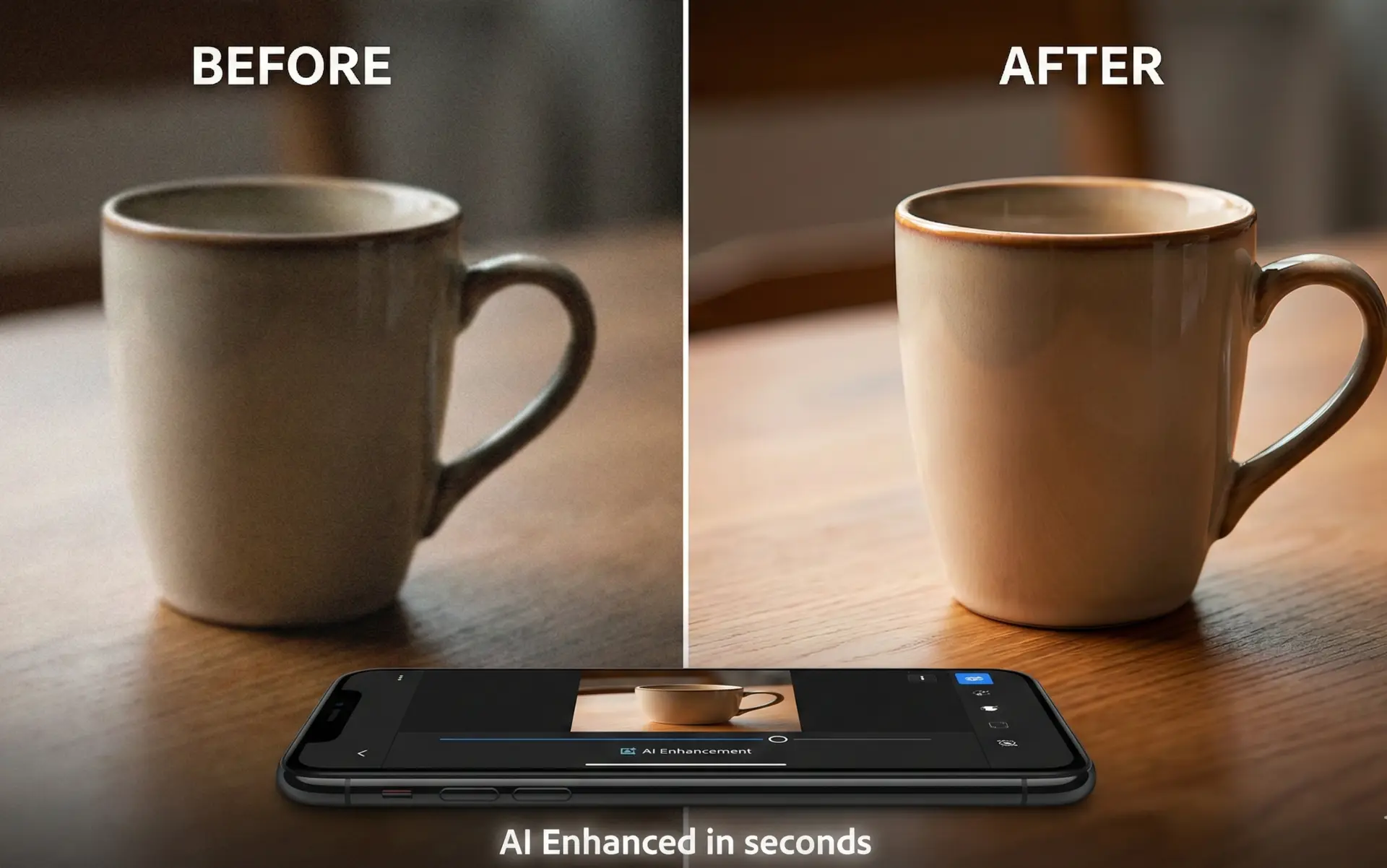
The transformative power: Remini uses AI to enhance photo quality in ways that seem almost magical. It can take a blurry, low-resolution photo from years ago and transform it into a sharp, clear image. I've restored old family photos, improved product photography for my business, and enhanced profile pictures with stunning results.
Real-world testing: I tested Remini on a decade-old photo from my first smartphone—a blurry image with terrible lighting that I'd considered unusable. Within seconds, Remini's AI sharpened facial features, enhanced colors, reduced noise, and improved overall clarity. The result wasn't perfect, but it transformed an unusable photo into something I could actually share and enjoy. For product photography, it's saved me hundreds of dollars in professional retouching costs.
- Installation: Download "Remini - AI Photo Enhancer" from your app store. No account required for basic features, but creating one saves your enhancements.
- First Use: Grant photos access. Select photo to enhance. Choose enhancement type (Enhance, AI Photos, Unblur). Process takes 5-15 seconds.
- Free Tier Limits: 5 free enhancements daily. Ads between enhancements (can be skipped after 5 seconds). HD downloads included. Tip: Process your most important photos early in the day to maximize daily limit.
- Best Practices: Works best on photos with clear subjects. Less effective on extremely dark or completely blurred images. Save enhanced versions separately to preserve originals.
Adobe Photoshop Express with Firefly AI iOS & Android
Professional capabilities, mobile convenience: Adobe brings enterprise-level AI editing to mobile with an impressively capable free version. The Generative Fill and Generative Expand features (powered by Adobe Firefly AI) let you add or remove objects, extend backgrounds, and make complex edits that previously required desktop Photoshop expertise.
How I use it practically: I recently needed to create social media graphics but my photos had distracting backgrounds. Using Photoshop Express, I removed the backgrounds entirely with one tap, added professional-looking blur effects, adjusted lighting with AI-powered auto-enhance, and exported perfectly sized images for Instagram and Facebook. The entire process took five minutes on my phone while sitting in a coffee shop.
The AI-powered background removal is particularly impressive. Unlike simple green-screen effects, Adobe's AI understands complex edges like hair, transparent objects, and intricate details. The results rival desktop software that costs hundreds of dollars.
- Installation: Download "Adobe Photoshop Express: Photo Editor" from app store. Create free Adobe account (or sign in with Google/Facebook).
- Key Features Access: Open app > Tap "+" > Select photo > Bottom toolbar shows AI features. "Cutout" for background removal, "Enhance" for AI improvement, "Remove" for object deletion.
- Free vs Premium: Free tier includes basic AI enhancements, background removal, filters, and adjustments. Premium ($10/month) adds Generative Fill, advanced healing, and batch processing. Free tier sufficient for most users.
- Export Optimization: Settings > Export Quality > Set to "High" for social media. Adjust dimensions based on platform (1080x1080 for Instagram, 1200x630 for Facebook).
Category 3: AI Writing Aids for Clear, Professional Communication
Grammarly Keyboard iOS & Android
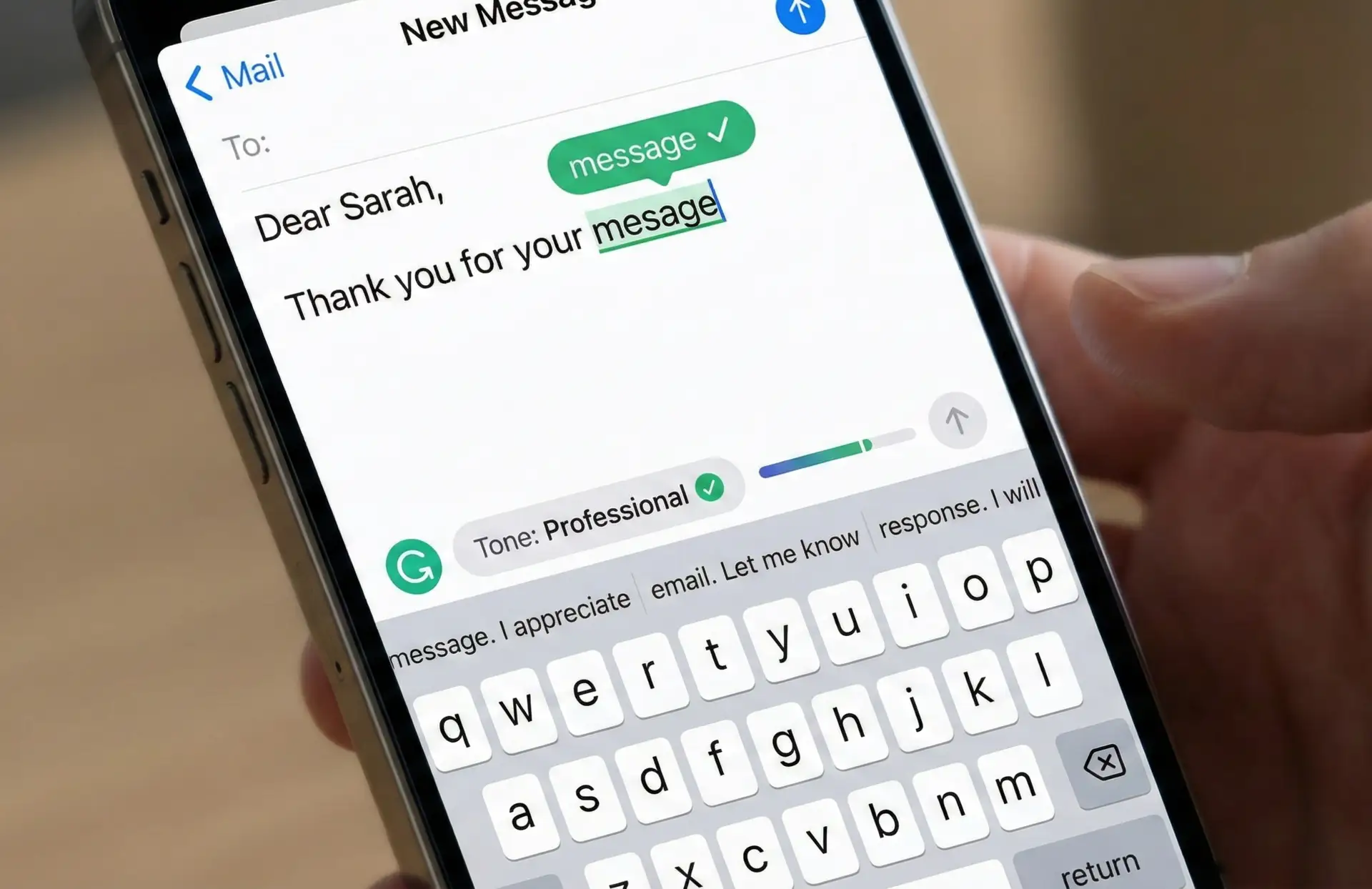
Your mobile proofreader: Grammarly's mobile keyboard brings its powerful grammar and spelling correction directly into every app where you type. Unlike the desktop version that works in browsers and documents, the mobile keyboard integrates system-wide, correcting your texts, emails, social posts, and notes as you type.
Daily impact: Since installing Grammarly Keyboard, my mobile communication has become noticeably more professional. It catches embarrassing typos before I send texts to clients, suggests better word choices in important emails, and helps me write more clearly in general. The real-time correction is subtle enough not to disrupt your writing flow while being effective enough to catch meaningful errors.
The mobile version includes tone detection, which has proven surprisingly valuable. Before sending potentially sensitive messages, I check the tone indicator. If it flags my message as "somewhat critical" or "potentially angry" when I intended to be constructive, I can revise before causing unintended offense.
- iOS Installation: Download "Grammarly - Keyboard & Editor" > Go to iPhone Settings > General > Keyboard > Keyboards > Add New Keyboard > Grammarly > Toggle "Allow Full Access" (required for corrections).
- Android Installation: Download from Play Store > Follow in-app setup wizard > Settings > System > Languages & Input > Virtual Keyboard > Manage Keyboards > Enable Grammarly.
- Privacy Concern: "Allow Full Access" sounds scary but is necessary for keyboard functionality. Grammarly's privacy policy states they don't sell data or serve ads. Sensitive fields (passwords, credit cards) are automatically excluded.
- Using Effectively: Switch to Grammarly keyboard by tapping globe icon when typing. Green underlines show corrections—tap to see suggestions. Use built-in synonyms to improve word choice. Disable in casual chats, enable for professional communication.
Microsoft SwiftKey with AI (Android) / Apple Keyboard with AI (iOS) Android iOS
Platform-specific excellence: Both platforms offer native keyboards with increasingly sophisticated AI, though they approach it differently. SwiftKey (owned by Microsoft) brings AI-powered predictions and Copilot integration to Android, while iOS's native keyboard incorporates on-device machine learning for personalized suggestions.
Android - SwiftKey advantage: SwiftKey learns your writing style remarkably quickly. After a week of use, it predicts entire phrases accurately, understands your commonly used terms (including technical jargon or slang), and offers contextually appropriate suggestions. The Microsoft Copilot integration (accessed via toolbar) provides AI writing assistance directly within the keyboard.
iOS - Native keyboard benefits: Apple's approach prioritizes privacy with on-device processing. The keyboard learns your patterns without sending data to servers, offers intelligent autocorrect that understands context, and provides inline word suggestions. iOS 18's enhanced AI features make it increasingly competitive with third-party options.
- Download "Microsoft SwiftKey Keyboard" from Play Store
- Follow setup wizard to enable as default keyboard
- Grant cloud backup permissions for cross-device sync (optional)
- Enable Copilot from keyboard toolbar for AI writing assistance
- Privacy tip: Disable "Cloud sync" if you want local-only learning
- Settings > General > Keyboard > Enable "Predictive"
- Settings > Privacy & Security > Analytics > Disable "Share iPhone Analytics" for maximum privacy
- Allow keyboard to learn: Type naturally for 7-10 days without clearing data
- Add custom text replacements: Settings > General > Keyboard > Text Replacement
Category 4: AI Learning Tools That Adapt to You
Duolingo with AI Tutor iOS & Android
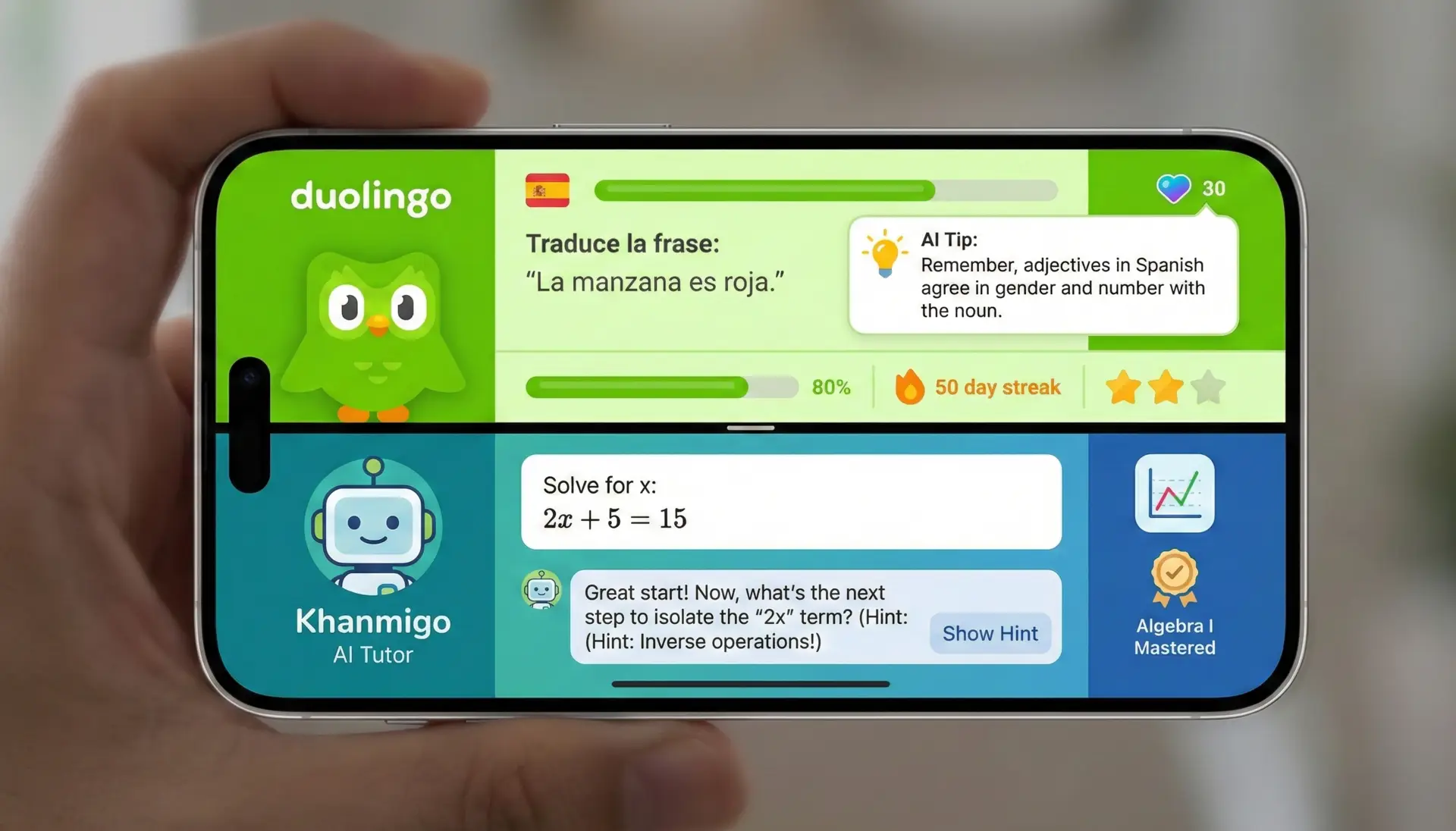
Language learning revolutionized: Duolingo has integrated AI tutoring that provides personalized instruction, explains grammar concepts when you struggle, and adapts difficulty based on your performance. The free version includes substantial AI features that were previously limited to paid tiers.
Personal experience: I've been learning Spanish using Duolingo for six months, and the AI tutor feature has transformed the experience. When I make consistent errors with verb conjugations, the AI recognizes the pattern and provides targeted explanations. It doesn't just mark answers wrong; it explains why and offers contextual examples. This adaptive approach feels like having a patient tutor who remembers your weak points and focuses practice accordingly.
The conversation practice mode uses speech recognition and AI to simulate real conversations. You speak into your phone, and the AI responds appropriately, correcting pronunciation and offering more natural phrasing. It's imperfect but vastly better than no conversation practice at all.
- Installation: Download "Duolingo: Language Lessons" from app store. Create account. Select language and complete placement test.
- AI Features Access: Complete daily lessons normally. AI explanations appear automatically when you make errors. Tap lightbulb icon for hints. Practice tab includes AI conversation practice.
- Free Tier Strategy: Free version includes all lessons and AI explanations but shows ads and has "hearts" system (limited mistakes). Maximize by: practicing right before bedtime to restore hearts, using practice lessons to repair hearts, learning from mistakes before continuing.
- Optimization: Enable notifications for streak reminders (Settings > Notifications). Set daily goal to "Serious" (15 min/day) for best results. Use web version (duolingo.com) for unlimited hearts during practice sessions.
Khan Academy with Khanmigo AI iOS & Android
Free AI tutoring for everything: Khan Academy's AI tutor, Khanmigo, provides personalized instruction across mathematics, science, history, and more. Unlike traditional video lessons, Khanmigo interacts conversationally, answers questions, and guides you through problems without simply giving answers.
How it actually works: When you're stuck on a math problem, instead of showing the solution, Khanmigo asks guiding questions: "What do you know about this type of equation?" "What happens if you try multiplying both sides?" This Socratic method helps you understand concepts rather than memorize steps. The AI adjusts its guidance based on your responses, providing more or less help as needed.
I tested this with high school algebra concepts I'd forgotten. Khanmigo patiently walked me through problems, explained underlying principles when I was confused, and celebrated correct reasoning. The experience felt remarkably like having a knowledgeable tutor who had infinite patience.
- Installation: Download "Khan Academy" from app store. Create free account. Browse subjects or search specific topics.
- Accessing Khanmigo: Look for "Khanmigo" icon (robot symbol) in lesson interfaces. Tap to start AI conversation. Ask questions naturally: "I don't understand step 3" or "Can you explain this differently?"
- Completely Free: Unlike most AI tutors, Khanmigo is genuinely free with no premium tier. No ads, no limitations. Funded by Khan Academy's nonprofit mission.
- Best Practices: Start with diagnostic tests to identify knowledge gaps. Use Khanmigo when stuck rather than skipping ahead. Ask follow-up questions if explanations aren't clear—the AI is remarkably patient.
Category 5: AI Productivity Apps That Organize Your Life
Notion AI Mobile iOS & Android
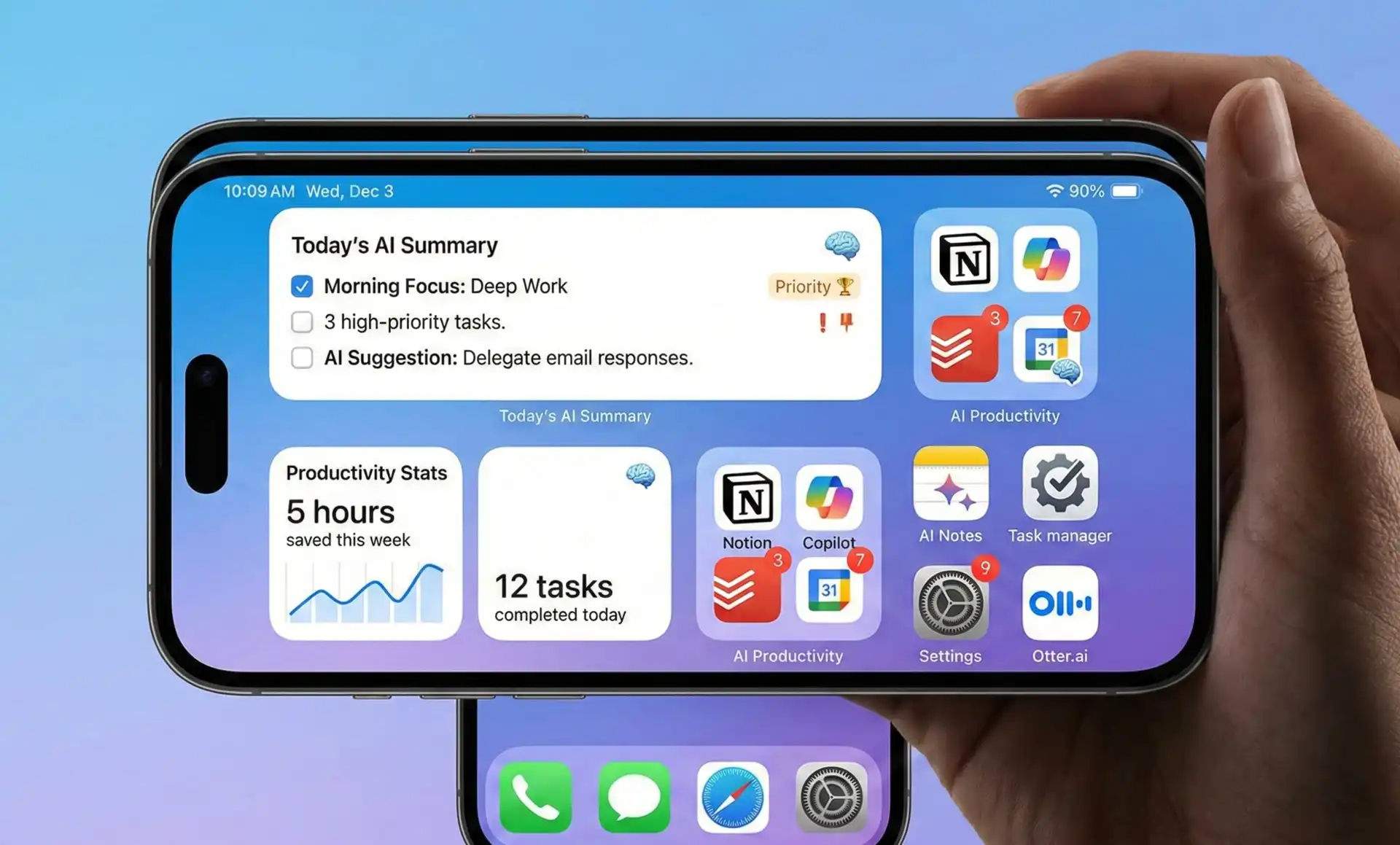
Your organized digital brain: Notion combines note-taking, task management, databases, and wikis into one platform, now enhanced with AI capabilities accessible on mobile. The free version includes limited AI features that are surprisingly useful for personal productivity.
Mobile-specific advantages: While Notion is powerful on desktop, the mobile app excels at capture—quickly saving ideas, voice memos that transcribe automatically, photos with context, and web clippings. The AI then helps you organize and process this information. I capture meeting notes on my phone, and later the AI summarizes key points, extracts action items, and suggests where to file the information in my workspace.
The mobile app's offline capability means you can access your entire knowledge base without internet—critical for productivity on planes, in basements, or in areas with poor connectivity. Sync happens automatically when connection resumes.
- Installation: Download "Notion: Notes, Tasks, AI" from app store. Create account or sign in. Complete onboarding wizard or select "Start from scratch."
- Mobile Optimization: Enable offline mode (Settings > Enable offline access). Pin frequently accessed pages for quick access. Use quick capture widget (add to home screen) for instant note creation.
- AI Features (Limited Free): Free accounts get 20 AI responses monthly. Use wisely: summarizing lengthy notes, generating action items from meetings, helping draft important documents. Reset monthly.
- Productivity Setup: Create pages for: Tasks/To-do, Meeting Notes, Ideas/Inspiration, Resources/References. Use templates from gallery to start quickly. Mobile app excels at capture; organize on desktop later.
Microsoft Copilot Mobile iOS & Android
Enterprise AI in your pocket: Microsoft's Copilot mobile app provides access to GPT-4 for free, unlike ChatGPT which limits free users to older models. It integrates with Microsoft 365 apps (if you use them) and includes image generation, code assistance, and research capabilities.
Unique advantages: Copilot's integration with Microsoft ecosystem makes it particularly valuable for business users. It can search your OneDrive files, reference information from Outlook emails (with permission), and help draft documents that sync with Word. The image generation (powered by DALL-E 3) is completely free with no daily limits—a significant advantage over other platforms.
I use Copilot specifically for its superior web search integration. When I need current information or research recent topics, Copilot searches the web automatically and cites sources. This makes it more reliable than general-purpose chatbots for fact-checking or researching current events.
- Installation: Download "Microsoft Copilot" (formerly Bing Chat) from app store. Sign in with Microsoft account (creates free one if needed).
- Feature Access: Main chat interface defaults to GPT-4. Tap camera icon to analyze images. Tap image generation icon for DALL-E 3 access. Microphone for voice input.
- Microsoft 365 Integration (Optional): If you use Microsoft 365, enable "Work mode" in settings. This allows Copilot to access your files and emails for enhanced assistance. Requires organizational permission for business accounts.
- Free Tier Benefits: Unlimited GPT-4 conversations (commercial usage), unlimited image generation, web search integration, no daily message limits. This makes it one of the most generous free AI offerings available.
Privacy Considerations: Protecting Your Data While Using AI Apps
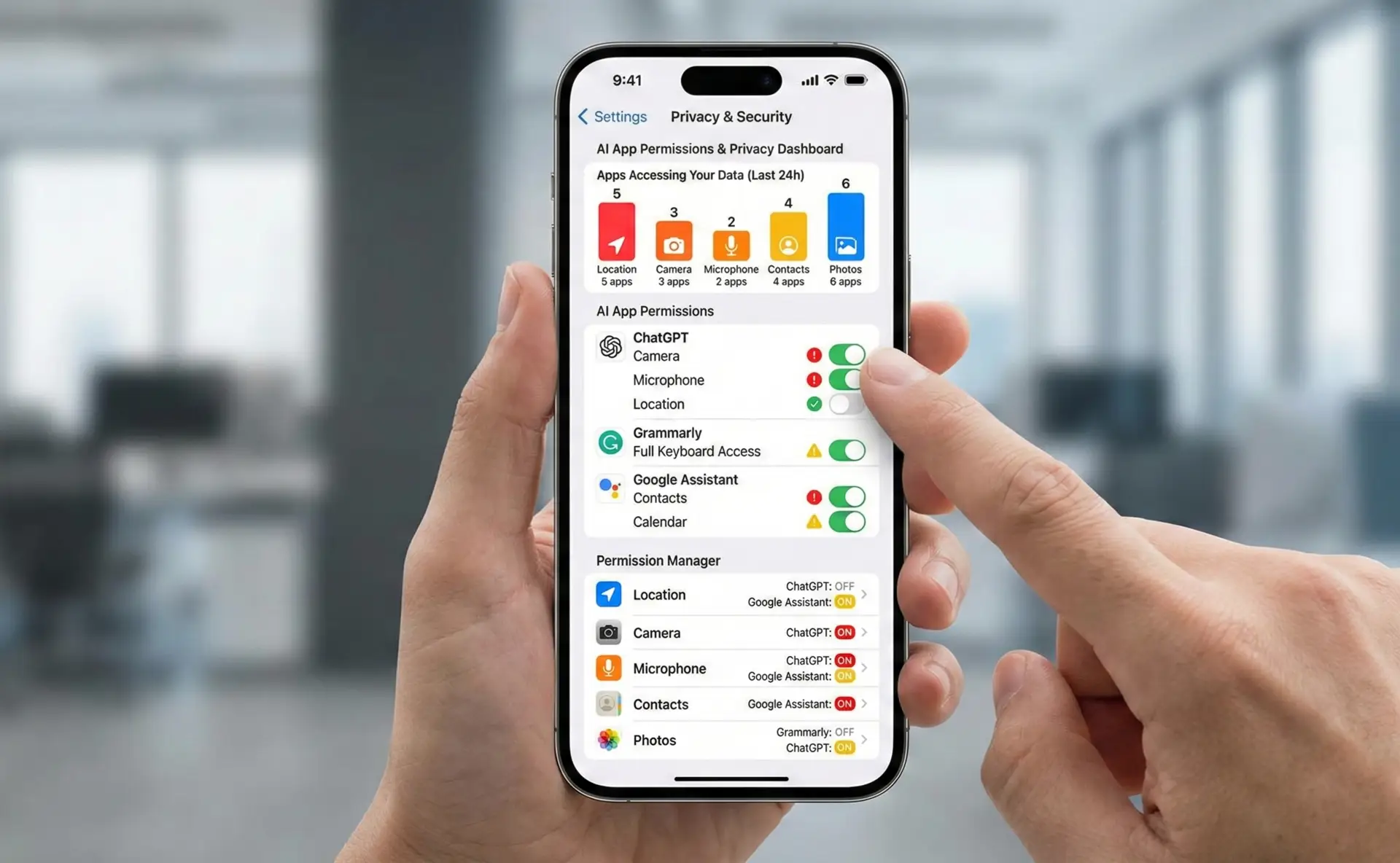
AI apps require data to function effectively, but you should understand and control what you're sharing. The convenience of AI assistance shouldn't come at the cost of your privacy. Here's a realistic framework for balancing functionality with data protection.
- Permissions audit: Review app permissions monthly. Settings > Privacy (iOS) or Settings > Apps > Permissions (Android). Revoke unnecessary access. AI apps often request contacts, photos, location—question whether each permission is truly needed.
- Data retention policies: Most AI apps store your conversations and inputs. ChatGPT, Gemini, Copilot all maintain history by default. Navigate to account settings and disable chat history or enable auto-delete for sensitive conversations.
- Sensitive information: Never input passwords, financial account numbers, social security numbers, or highly personal medical information into AI chatbots. These systems aren't designed for secure handling of such data.
- Work vs Personal: If using AI apps for work, check company policies. Many organizations prohibit entering proprietary information into consumer AI services. Use separate accounts for personal and professional use.
- On-device vs Cloud: Prefer apps offering on-device processing when possible. Apple's AI features, for example, process most requests locally. This provides AI benefits without sending data to servers.
Platform-level privacy settings: Both iOS and Android offer system-wide controls that apply across all apps. On iOS: Settings > Privacy & Security > review each category (Location Services, Contacts, Photos, Microphone, etc.) and restrict apps to "Ask Next Time" or "Never" where appropriate. On Android: Settings > Privacy > Permission Manager > review each permission type and adjust app-by-app.
Maximizing Free Tiers: Strategic Approaches to Avoid Paid Subscriptions
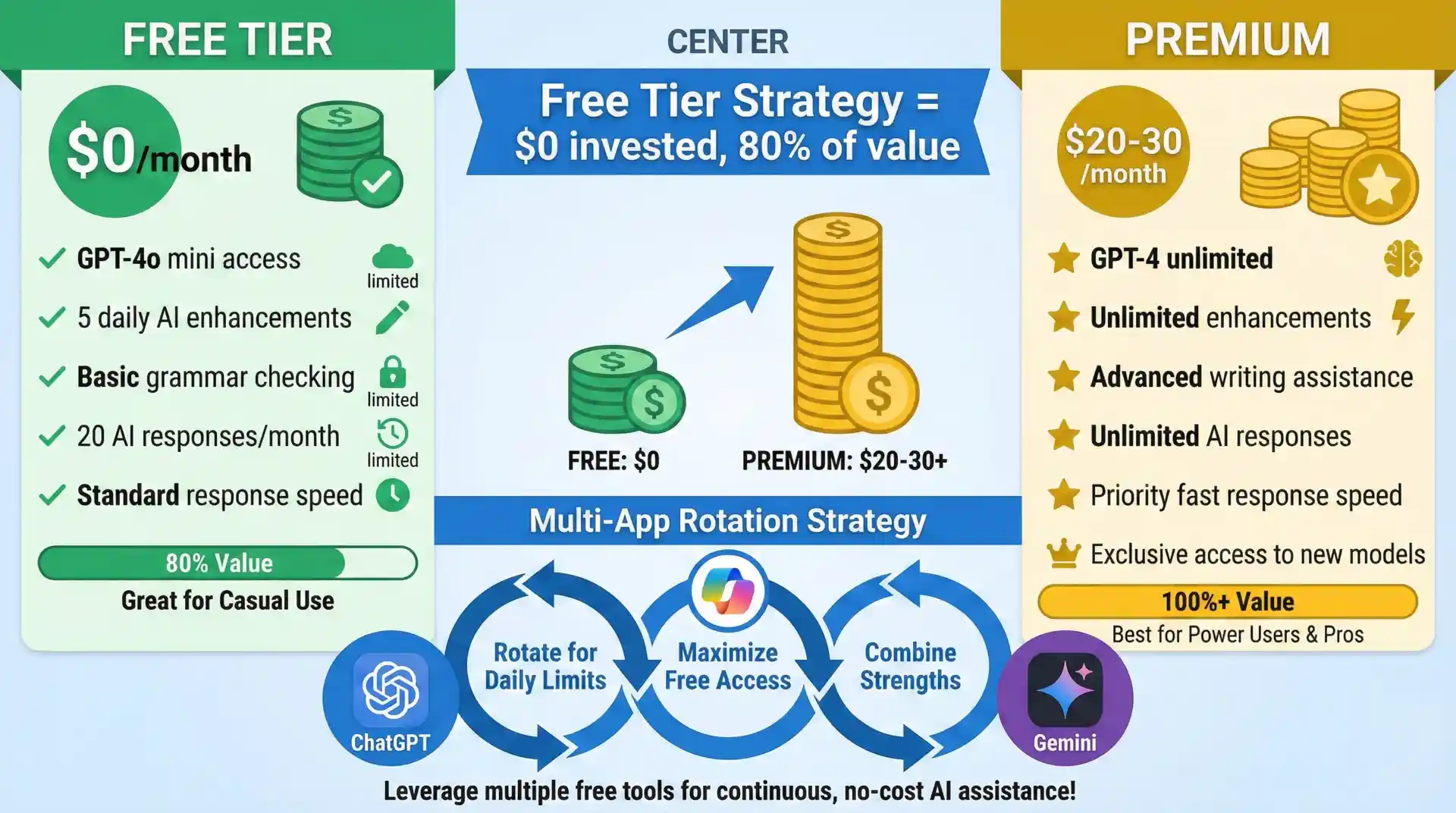
The AI app landscape is deliberately designed to push users toward paid subscriptions, but with strategic usage, free tiers provide substantial value. I've been using exclusively free versions for over a year, and these approaches have kept me from needing any paid upgrades.
The Multi-App Strategy
Rather than paying for premium features in one app, use free tiers across multiple apps strategically. For example: Use ChatGPT's free tier until you hit message limits, then switch to Microsoft Copilot (unlimited). Use Remini's five daily photo enhancements early morning, then switch to Adobe Photoshop Express for additional edits. This approach provides effectively unlimited access by rotating between services.
Timing Your Usage
Most free tiers reset daily or monthly. Track reset times and schedule demanding tasks accordingly. ChatGPT resets at midnight EST. Notion AI resets on your sign-up anniversary date. Plan important work around these schedules. I draft complex documents on the first day of each month when my AI quotas are fresh.
Quality Over Quantity
Free tiers often limit quantity but not quality. Make each interaction count by crafting better prompts, providing clear context, and asking follow-up questions within the same conversation rather than starting new ones. A well-crafted single request often accomplishes more than multiple poorly-constructed queries.
Alternative Platforms
Some AI capabilities are available free on web platforms but charge for mobile apps. Canva, Notion, and ChatGPT all offer web interfaces that work excellently on mobile browsers. Add these as home screen shortcuts for app-like experience without the subscription pressure.
- Weeks 1-2: Use ChatGPT for writing tasks (free GPT-4o mini)
- Weeks 2-3: Switch to Microsoft Copilot (unlimited GPT-4)
- Week 4: Use Google Gemini for research and analysis
- Ongoing: Grammarly keyboard (always free), platform voice assistants (Google/Siri)
- Photos: Remini for 5 daily enhancements, Adobe Express for additional needs
- Learning: Duolingo daily (unlimited practice), Khan Academy as needed (completely free)
This rotation provides professional-grade AI assistance across all categories without paying for any subscriptions.
Creating Your Personal AI Ecosystem: Step-by-Step Setup
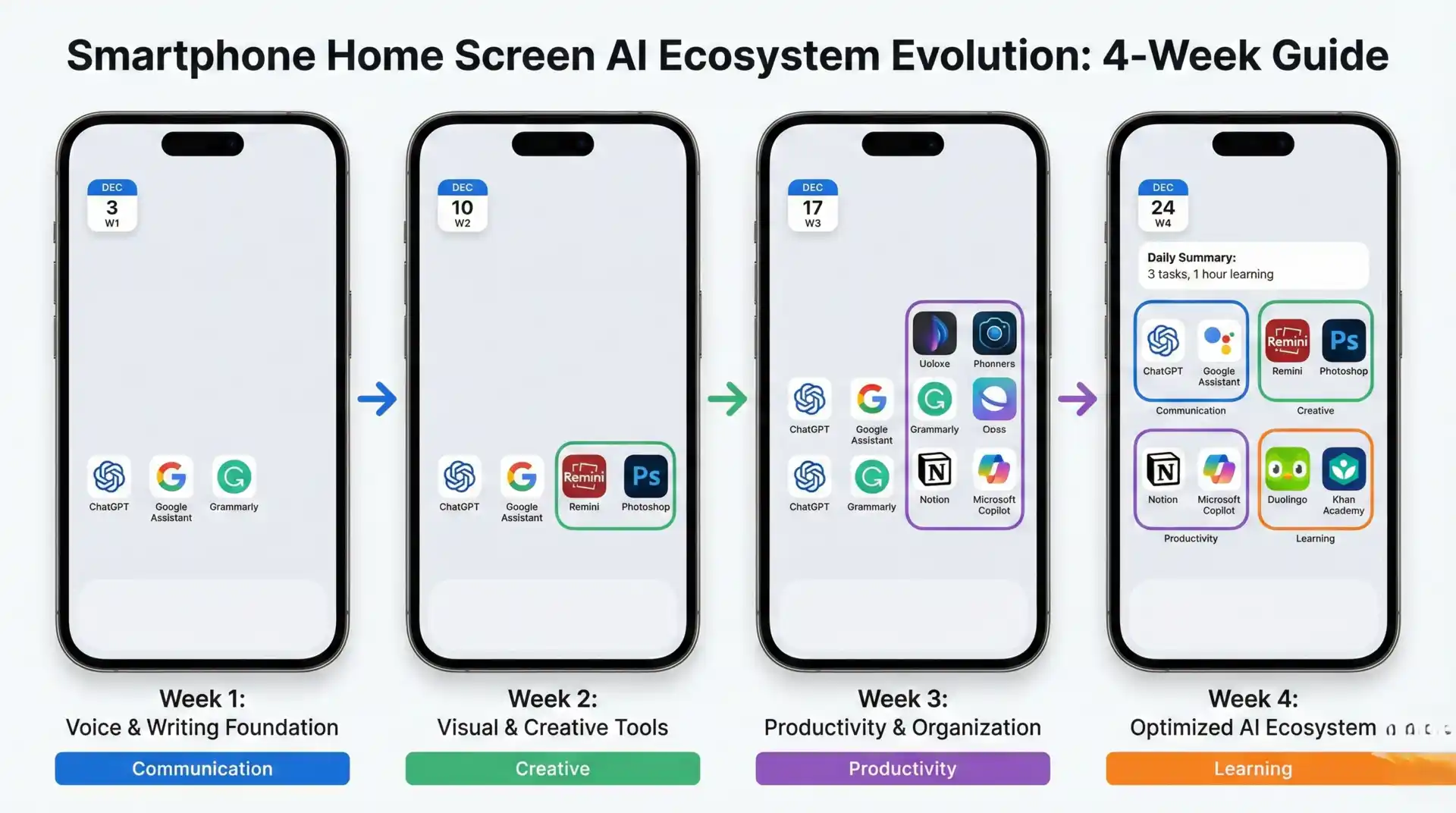
Installing apps randomly creates clutter and reduces effectiveness. Here's a structured approach to building your AI ecosystem methodically.
Week 1: Foundation (Voice & Writing)
Day 1-2: Set up primary voice assistant (Google Assistant or Siri with ChatGPT). Configure wake words, connect accounts, enable hands-free mode. Spend 30 minutes exploring capabilities through natural conversation.
Day 3-4: Install ChatGPT mobile app. Create account, enable voice mode, set up custom instructions. Use for one specific task daily (email drafting, brainstorming, research).
Day 5-7: Add Grammarly Keyboard. Enable across system, adjust settings, practice using it in messages and emails. Notice error patterns it catches.
Week 2: Visual & Creative
Day 8-10: Install Remini and Adobe Photoshop Express. Enhance 10-15 existing photos to understand capabilities. Experiment with background removal and AI improvements.
Day 11-14: Based on your needs, add either Canva (for graphic design) or Microsoft Copilot (for image generation). Create 3-5 test projects to learn the interface.
Week 3: Productivity & Organization
Day 15-17: Set up Notion. Create basic structure (tasks, notes, resources). Add quick capture widget to home screen. Practice capturing thoughts throughout the day.
Day 18-21: Integrate Microsoft Copilot or additional productivity tools based on your workflow. Configure notifications, enable integrations, establish daily habits.
Week 4: Learning & Optimization
Day 22-25: If learning interests you, add Duolingo or Khan Academy. Set realistic daily goals. Use AI explanations actively when confused.
Day 26-30: Review your usage patterns. Remove apps you haven't used. Reorganize home screen to prioritize most valuable apps. Adjust notification settings. Fine-tune privacy controls.
Common Mistakes to Avoid

Installing everything immediately: App overwhelm leads to abandonment. Install 2-3 apps, use them consistently for a week, then add more. Building habits with fewer apps beats having twenty unused apps.
Ignoring privacy settings: Default settings prioritize functionality over privacy. Spend 10 minutes per app reviewing permissions and data settings. Your future self will appreciate this diligence.
Not learning properly: AI apps are intuitive but have depth. Watch official tutorial videos (most apps have YouTube channels), read help documentation, experiment deliberately rather than randomly tapping buttons.
Expecting perfection: AI makes mistakes, misunderstands requests, and occasionally produces nonsense. Always review outputs, especially for important communications or decisions. AI assists; you decide.
Forgetting to review: Set monthly calendar reminders to review which apps you actually use, whether you're hitting free tier limits, and if alternatives might work better. Your needs evolve; your app ecosystem should too.
Measuring Your Success
Track these metrics to quantify the value your AI assistant ecosystem provides:
- Time saved: Note tasks that previously took 30 minutes now take 5 minutes with AI assistance
- Quality improvement: Photos enhanced, writing error reduction, learning progress
- New capabilities: Tasks you can now do on mobile that previously required computers
- Stress reduction: Confidence in communication, less anxiety about mistakes
Even conservative estimates suggest these tools save 5-8 hours weekly—250-400 hours annually. That's 6-10 full work weeks reclaimed.
The Future is Already Here

The AI capabilities available on smartphones today would have seemed like science fiction just three years ago. We're carrying devices more powerful than the computers that sent humans to the moon, now enhanced with artificial intelligence that can understand, create, and assist in remarkably human-like ways.
What's most exciting isn't just what these tools can do today, but how rapidly they're improving. Each month brings new capabilities, better accuracy, and more natural interactions. The apps I've recommended represent the current state-of-the-art, but they'll be notably better six months from now, and dramatically more capable a year from now. For the latest developments in mobile AI, TechCrunch's AI coverage provides excellent ongoing updates.
The competitive advantage isn't simply having these apps—anyone can download them. The advantage comes from actually using them consistently, understanding their strengths and limitations, and integrating them into your daily workflows. People who embrace these tools now are developing skills and habits that will compound in value as AI capabilities expand.
Your smartphone is already the most powerful piece of technology most people own. With the right AI apps properly configured, it becomes an intelligent assistant that enhances your productivity, creativity, communication, and learning. The setup takes a few hours. The benefits last indefinitely.
Start with one category that addresses your biggest pain point. Install those apps, configure them properly, use them consistently for two weeks. Then expand to the next category. Within a month, you'll have built a personal AI ecosystem that genuinely improves your daily life—all without spending anything beyond the phone you already own.