
Table of Contents
Understanding Veo 3's Requirements
Google's Veo 3 is a powerful AI video generation tool, but it has specific requirements that many creators overlook. The most critical constraint is the 95-character dialogue limit per scene. This isn't arbitrary—it's designed to ensure clear, natural-sounding speech synthesis.
When you exceed this limit, Google's Veo 3 either truncates your dialogue (cutting off mid-sentence) or fails to generate the scene entirely. Neither outcome is acceptable for professional content.
Key Insight
The 95-character limit includes spaces and punctuation. A sentence like "I need to talk to you about something really important right now" is exactly 65 characters—well within the limit. But add context and emotion, and you'll quickly exceed it.
The Five Elements of a Perfect Veo 3 Scene
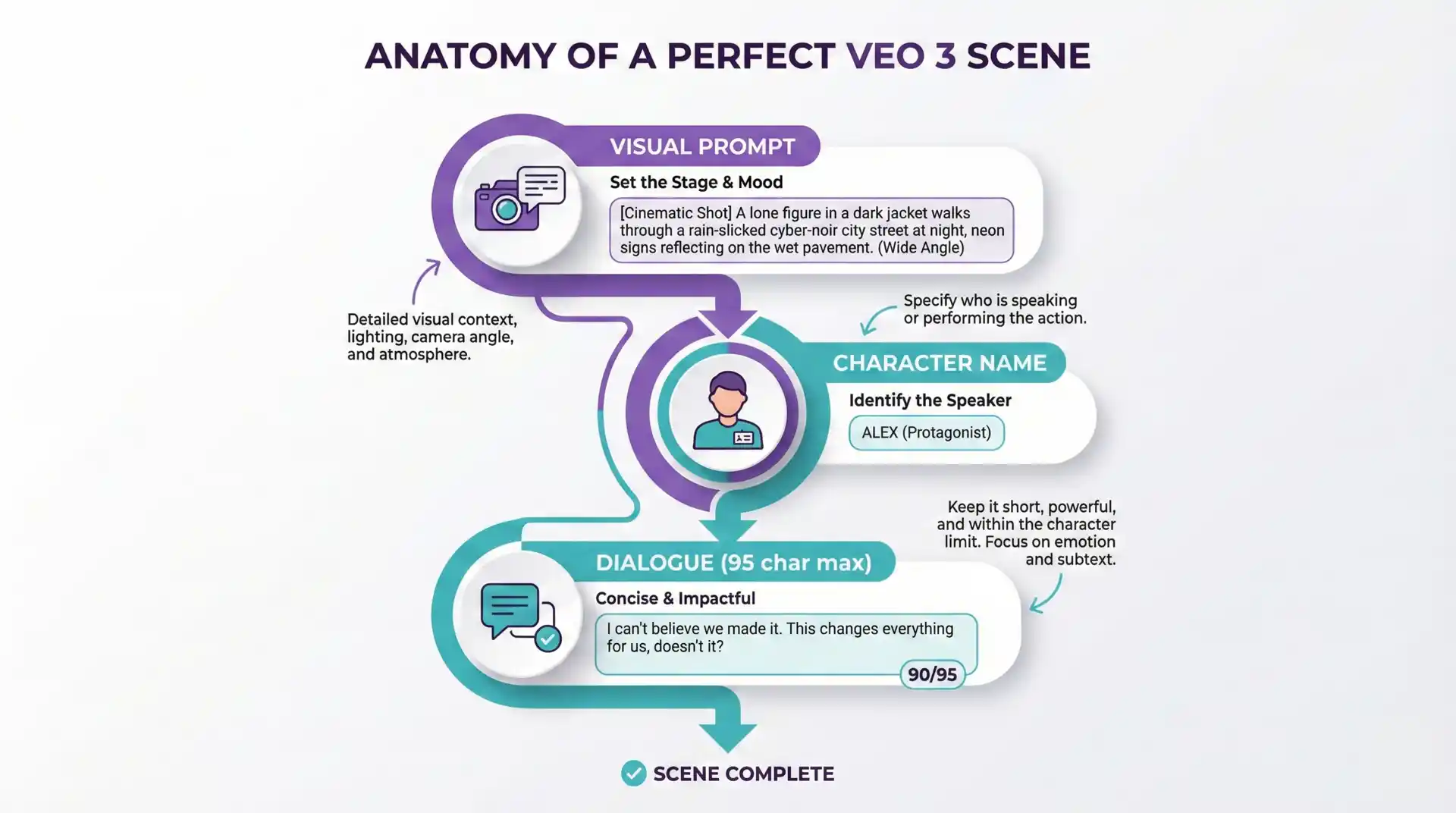
Every scene you create for Veo 3 should contain these five elements:
1. Visual Description (The Scene Prompt)
This is where you describe what the camera sees. Be specific about:
- Shot type: Close-up, medium shot, wide shot, establishing shot
- Camera movement: Static, pan, tilt, dolly, tracking
- Lighting: Natural, dramatic, soft, harsh, golden hour
- Atmosphere: Mood, weather, time of day
2. Character Description
For consistent characters across scenes, include:
- Age and gender
- Physical features (hair color, build, distinguishing features)
- Clothing and accessories
- Current emotional state
3. Action Description
What is the character doing? Be specific:
- Body language and gestures
- Facial expressions
- Movement within the scene
- Interaction with environment or other characters
4. Dialogue (95 Characters Max)
The spoken words, carefully crafted to fit within the limit while maintaining natural speech patterns.
5. Transition Guidance
How does this scene connect to the next? Options include:
- Cut (immediate transition)
- Fade (gradual transition)
- Match cut (visual similarity)
- J-cut or L-cut (audio overlap)
Before and After: Real Script Transformation
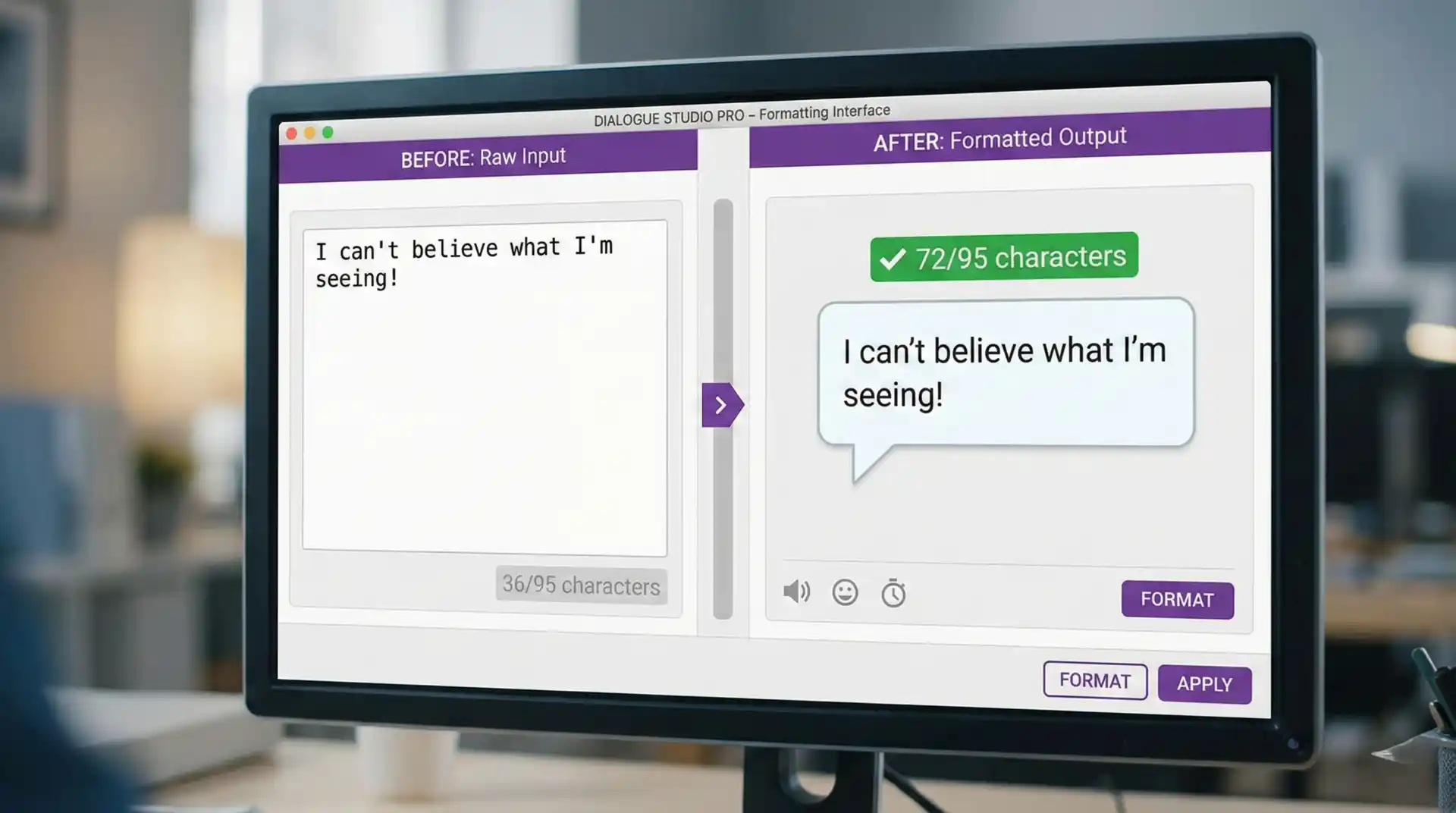
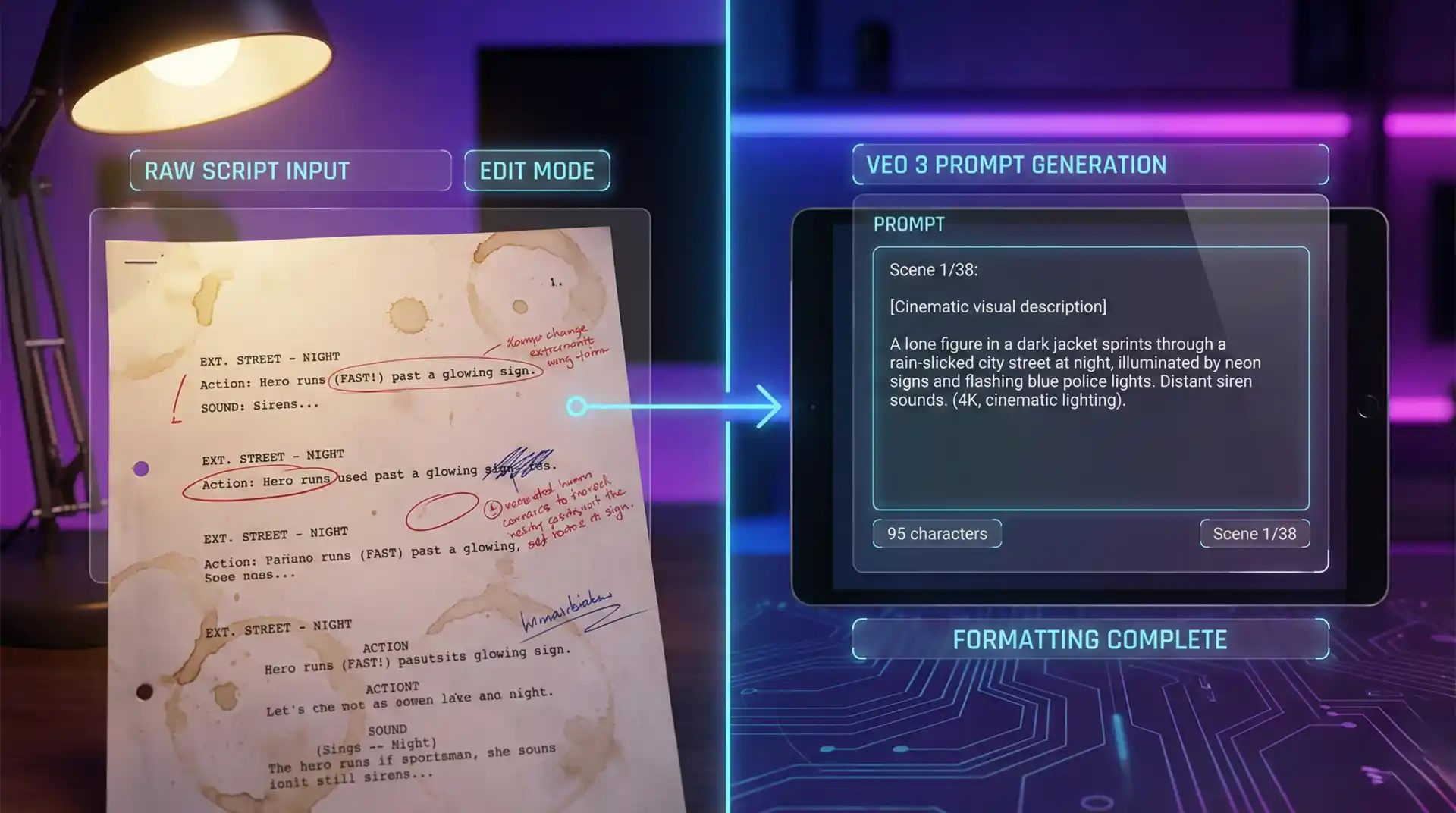
Let's look at a real example of transforming a raw script into Veo 3-ready format.
Before (Raw Script)
Detective Sarah walks into the dimly lit interrogation room. She's been working this case for three weeks and finally has a lead.
Sarah says "I know you were at the warehouse on the night of October 15th. We have security footage, witness statements, and your fingerprints on the door handle. So why don't you save us both some time and tell me what really happened?"
After (Veo 3 Optimized)
Visual: Medium shot of Detective Sarah (35, sharp features, dark blazer, tired eyes) entering a dimly lit interrogation room. Harsh overhead fluorescent lighting creates dramatic shadows. Camera follows her movement.
Dialogue (91 chars): "I know you were at the warehouse on October 15th. We have footage and prints."
Scene 2:
Visual: Close-up of Sarah leaning forward across the metal table, intensity in her eyes. Single overhead light emphasizes determination.
Dialogue (58 chars): "Save us both time. Tell me what really happened."
Notice how the long dialogue was split into two scenes, each under 95 characters. The visual descriptions were enhanced with cinematic details, and character consistency was maintained.
Techniques for Splitting Long Dialogues
When your dialogue exceeds 95 characters, you have several options:
1. Natural Pause Points
Look for natural breaks in speech—periods, commas, or logical pauses. Split at these points for natural-sounding dialogue.
2. Action Interruption
Insert a brief action between dialogue segments. This creates visual interest and allows for longer conversations.
3. Reaction Shots
Cut to another character's reaction, then return to continue the dialogue. This is a common film technique.
4. Condensation
Sometimes the best solution is to say the same thing with fewer words. "I need to discuss something important with you" becomes "We need to talk."
Character Consistency Across Scenes
One of the biggest challenges with AI video generation is maintaining consistent character appearances. Here's how to solve it:
Create a Character Reference Block
At the start of your script, define each character once:
CHARACTER: Detective Sarah Chen
- Age: 35
- Ethnicity: Asian-American
- Hair: Black, shoulder-length, usually tied back
- Build: Athletic, 5'7"
- Clothing: Dark navy blazer, white blouse, badge on belt
- Distinguishing features: Small scar above left eyebrow
- Default expression: Focused, determined
Include this reference in every scene prompt, or use our Veo 3 Script Writer tool which automatically maintains character consistency.
Cinematic Language for Better Results
Using proper cinematography terminology helps Veo 3 understand exactly what you want:
| Term | Description | Best Used For |
|---|---|---|
| Extreme Close-up | Eyes, hands, small objects | Emotional intensity, detail focus |
| Close-up | Face and shoulders | Dialogue, emotional reactions |
| Medium Shot | Waist up | Conversations, gestures |
| Wide Shot | Full body with environment | Action, establishing context |
| Establishing Shot | Location overview | Scene transitions, setting mood |
Common Mistakes to Avoid
- Exceeding the character limit: Always count your characters. Use tools that automatically enforce the 95-character limit.
- Vague visual descriptions: "A room" is not helpful. "A modern office with floor-to-ceiling windows, afternoon sunlight streaming in" gives Veo 3 something to work with.
- Inconsistent character descriptions: If your character has brown hair in scene 1 and blonde hair in scene 5, you'll get inconsistent results.
- Ignoring lighting: Lighting dramatically affects mood. Always specify lighting conditions.
- Too many characters per scene: Veo 3 works best with 1-2 characters per scene. More than that can cause confusion.
Using the Veo 3 Script Writer Tool
Our free tool automates all of this formatting for you:
- Paste your raw script into the input area
- The tool automatically detects dialogue and action
- Dialogues are split to meet the 95-character limit
- Visual prompts are generated with cinematic descriptions
- Character consistency is maintained across all scenes
Ready to Format Your Script?
Try our free Veo 3 Script Writer and save hours of manual formatting.
Try It FreeConclusion
Proper script formatting is the foundation of professional AI video generation. By understanding Veo 3's requirements—especially the 95-character dialogue limit—and applying cinematic principles to your visual descriptions, you'll create videos that stand out from the crowd.
Remember: the goal isn't just to meet technical requirements, but to use those constraints creatively. The best filmmakers have always worked within limitations, and AI video generation is no different.